
GuideWhat is intelligent document processing (IDP)?
Intelligent document processing (IDP) is software that reads documents, works out what they are, pulls out the data that matters, checks it and passes it to your systems. This guide explains each stage in plain words, and how to test it on your own paperwork.
The short version
IDP is not one piece of technology. It is a chain of steps that turns a pile of mixed documents into checked data, with people stepping in only where the software is unsure.
What intelligent document processing means
Most organisations still receive a lot of their information as documents: invoices, application forms, claim forms, delivery notes, letters, statements and contracts. Some arrive on paper, some as PDF attachments, some as photos taken on a phone. Before anyone can act on them, somebody has to open each one, decide what it is, find the right numbers and names, type them into another system and file the original.
Intelligent document processing automates as much of that as it safely can. The word "intelligent" refers to the parts that go beyond simply turning an image into text: recognising what kind of document it is, finding a value wherever it sits on the page, judging how confident the software is in each answer, and checking the result against rules and your own records.
A good IDP system does not try to remove people altogether. It sends the easy, confident, valid documents straight through and puts the uncertain ones in front of an operator, with the page beside the data. The aim is less keying and fewer errors, not blind trust in a machine.
How it works, stage by stage
Products divide the work in different ways and use different names, but almost every IDP system goes through the same stages.
Capture
Documents come in from scanners, shared folders, mailboxes, cloud storage or an API. Multi-page files are split into pages and grouped into batches so they can be tracked.
Image clean-up
Pages are straightened, turned the right way up and cleaned of specks, shading and coloured backgrounds. Blank pages are removed, and poor scans are flagged before anything tries to read them.
Recognition
The software reads printed text (OCR), handwriting (ICR), tick boxes (OMR) and barcodes. Each word or mark comes with a confidence score.
Separation and classification
A stack of pages is split into separate documents, and each document is given a type such as invoice, credit note or proof of address. This can use rules, a model trained from your samples, or both.
Extraction
For each type, the software finds the fields you need: reference numbers, dates, names, amounts, addresses and table rows. It looks for labels, patterns and positions rather than relying on one fixed layout.
Validation and review
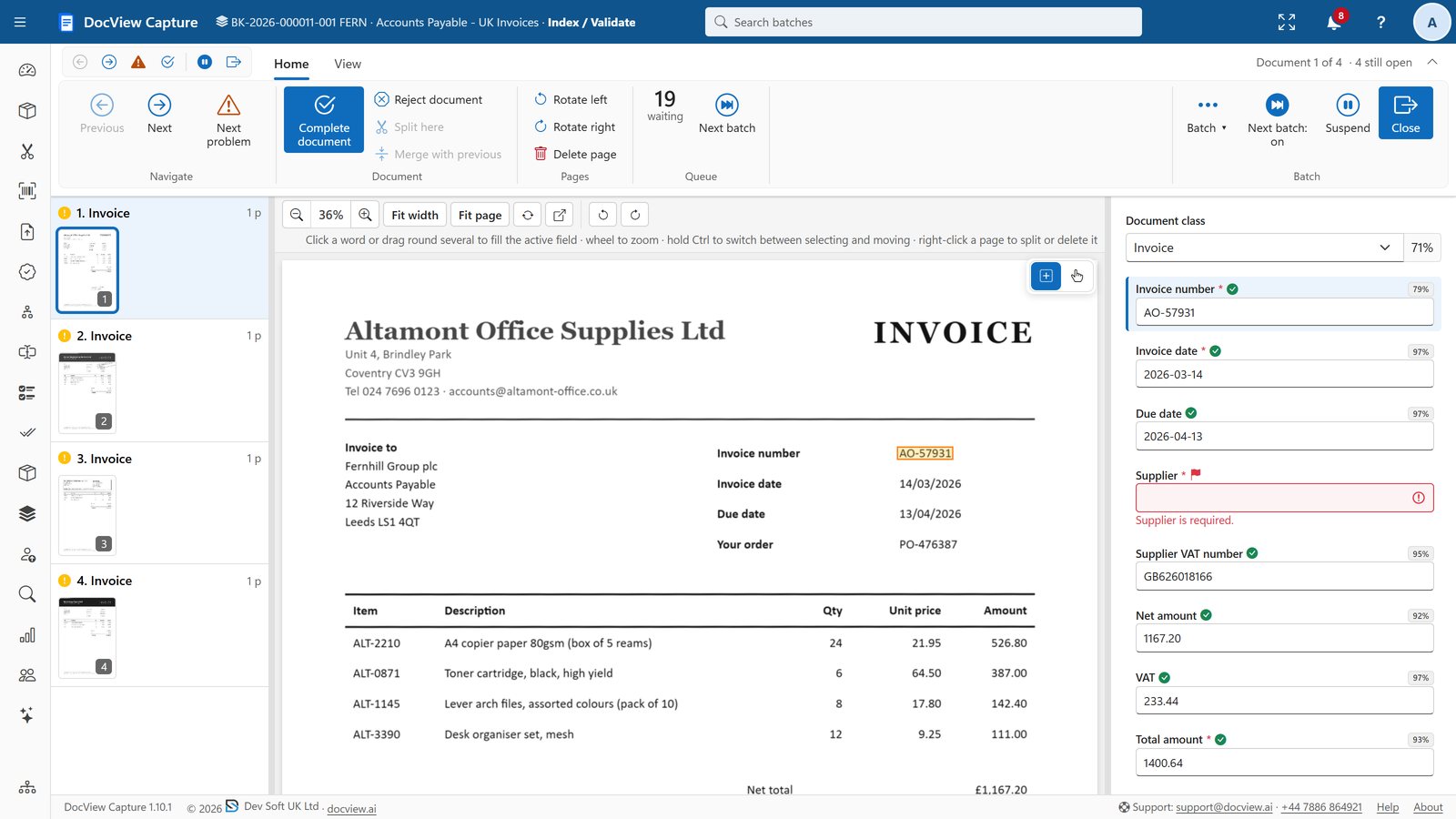
Values are tidied and checked: totals add up, dates are real, check digits are right, the supplier exists in your records, the document is not a duplicate. Anything uncertain or invalid goes to a person.
Delivery
The finished result, usually a searchable PDF plus a data file, is sent to the system that needs it: a finance system, a case system, a document store or a database.
How IDP differs from plain OCR
People often use "OCR" to mean the whole job, so it helps to separate the two. OCR is one stage inside IDP. On its own, it gives you the text of a page. It does not tell you which number is the invoice total, whether the page belongs to the previous document, or whether the value is right.
| Question | Plain OCR | Intelligent document processing |
|---|---|---|
| What do you get? | The text of each page, often as a searchable PDF | Named fields and tables, checked, plus the searchable PDF |
| Mixed stacks of paper? | One long file | Split into documents and sorted by type |
| Different layouts? | Not its concern | Finds values by label, pattern and context |
| Handwriting and ticks? | Usually printed text only | Handwriting, tick boxes and barcodes as well |
| Is the data right? | No checks | Rules, look-ups, duplicate checks and confidence scores |
| Where does it go? | A file on disk | Exported to the systems that act on it |
If all you need is to make old files searchable by their words, OCR may be enough. If you need data to reach another system without retyping, you are looking at IDP. Our guide to OCR, ICR, OMR and barcode recognition explains the recognition stage in more detail.
Where it helps most
IDP pays off where documents arrive in steady volume, follow a recognisable pattern and feed a process that someone already does by hand. Typical examples:
- Supplier invoices and credit notes for accounts payable
- Incoming post and e-mail in a digital mailroom
- Application, claim and registration forms with handwriting and tick boxes
- Bank statements and proof of address for onboarding checks
- Delivery notes, proof of delivery and shipping documents
- Personnel files, patient records and other back-scanning projects
It helps less where every document is unique, volumes are tiny, or the hard part is a judgement no rule can capture. In those cases, capture and search may still be worth having, but full extraction may not repay the setup effort.
A simple test: if your team can write down where a value usually appears and how to check it, software can probably be set up to do the same.
How to choose an IDP tool
Demonstrations tend to use tidy sample documents. Your own documents are the only fair test. When you compare tools, ask about the following.
Inputs and recognition
- Can it take documents from every place yours arrive: scanners, mailboxes, folders, cloud storage, other systems?
- Does it read the things your documents contain: handwriting, tick boxes, barcodes, tables over several pages, the languages you receive?
- Can you see a confidence score for each value, and set what counts as confident enough?
Checking and people
- Can you write your own validation rules and look up values in your own data?
- Is the review screen quick to use from the keyboard, with the value highlighted on the page?
- Are there options for a second check, such as double-keying, where errors are costly?
Running it
- Where does it run, and where do your documents go? Can it run on your own servers if needed?
- If cloud AI services are used, are they optional, and can you control which ones?
- Can it export the formats and destinations your systems expect?
- Can your own staff change a setup, test it and release a new version safely?
- Are there reports that show volumes, turnaround and how much correction is still needed?
How to run a pilot
A pilot answers one question: on our documents, with our rules, how much work does this save and how much still needs a person? Keep it small and specific.
Pick one process
Choose a single document flow with a clear owner, such as supplier invoices or one type of form. Avoid starting with the hardest case.
Gather real samples
Collect a representative set, including the awkward ones: poor scans, unusual layouts, handwriting, multi-page documents. Keep a separate set back for testing.
Write down the fields and rules
List each value you need, what makes it valid and where it should end up. This list is useful whatever tool you choose.
Agree how you will measure
Decide in advance: how many documents go straight through, how many fields are corrected, how long review takes, and whether exported data is right.
Set up, test and tune
Run the samples, look at what was missed or wrong, adjust and run the held-back set. Expect a few rounds.
Run it alongside the old way
For a short period, process live documents both ways and compare. Then decide whether to go live, extend or stop.
Common mistakes: judging a tool on its own demo documents, skipping the validation rules, measuring only recognition rather than the data that finally reaches your system, and leaving the people who do the work today out of the pilot.
How DocView Capture handles IDP
DocView Capture is web-based document capture software from Dev Soft UK that covers every stage above. You describe each kind of work once in a Batch Setup: where documents come from, how pages are cleaned, how they are split and classified, which fields to find, how to check them and where to send them.
- Scanning from TWAIN or WIA scanners in the browser, plus import from folders, mailboxes, SFTP, cloud storage, databases and a REST API
- Print, handwriting, tick boxes and barcodes read by DocView's own recognition engine, on your servers
- Classification by rules, a classifier trained from your samples, or both, with a confidence threshold you set
- Finders for labels and values, patterns, zones and multi-page tables, plus fuzzy look-up against your master data
- Validation rules and check digits, with operators shown only uncertain or invalid values
- Searchable PDF, PDF/A or TIFF plus XML, CSV or JSON to folders, databases and business systems
For a pilot, a benchmark over your samples shows precision and recall per field, and reports show where operators still correct values. Cloud AI finders are optional and off by default.
Start with one of the ready-made Batch Setups, see the full feature list, or browse the solution library for processes such as invoice processing and the digital mailroom.
Intelligent document processing questions
Is intelligent document processing the same as OCR?
No. OCR turns an image of text into text. Intelligent document processing uses OCR as one step, then splits and classifies documents, extracts named fields, checks them against rules and your own data, and delivers the result to other systems.
Does IDP remove the need for people?
Not entirely, and it should not try to. A well set up system sends confident, valid documents straight through and puts uncertain or invalid values in front of a person, so staff spend their time on the documents that need a decision.
Do documents have to follow a fixed layout?
No. IDP tools find values by labels, patterns and context as well as by position, so documents from many senders can be handled by one setup. Fixed zones are still useful for your own forms, where the layout never changes.
Does IDP need a cloud AI service?
Not necessarily. Many stages run well on your own servers. In DocView Capture, recognition runs on DocView's own engine on ordinary processors, and cloud AI finders are optional, off by default and switched on per provider with your own keys.
How long should a pilot take?
That depends on the number of document types and how much data you need from each. Keep the first pilot to one process with real samples and agreed measures, so you can decide quickly whether to extend it. DocView offers a free 14-day online demo and a separate 30-day installed evaluation.
Test IDP on your own documents
Start a free 14-day demo in your own workspace, with sample Batch Setups ready to run. No installation, no credit card.