
GuideOCR, ICR, OMR and barcode recognition explained
OCR, ICR, OMR and barcode recognition are four ways software reads a page: printed text, handwriting, tick boxes and codes. This guide explains what each one does, what makes results better or worse, and how to design forms and checks so the data you get is data you can use.
The four at a glance
| Technology | Reads | Typical use |
|---|---|---|
| OCR (optical character recognition) | Machine-printed text | Invoices, letters, statements, searchable PDFs |
| ICR (intelligent character recognition) | Handwriting and hand printing | Application, claim and registration forms |
| OMR (optical mark recognition) | Ticks, crosses and filled boxes | Questionnaires, consent choices, answer sheets |
| Barcode recognition | 1D barcodes, 2D codes such as QR, and patch codes | Separator sheets, references on forms, box labels |
OCR: printed text
Optical character recognition turns an image of printed or typed text into characters a computer can search, copy and process. It is the oldest and most mature of the four. On a clean, straight scan of a typed letter it reads most characters correctly, and its typical output is a searchable PDF: the page image with an invisible text layer behind it.
OCR on its own gives you text, not meaning. It does not know that one number is an invoice total and another a phone number. That is the job of the extraction and validation steps that follow, which are covered in our guide to intelligent document processing.
Common OCR trouble spots are small or decorative fonts, text over coloured backgrounds or stamps, faint dot-matrix print, faxes, thermal till receipts that have faded, and tables with tight ruled lines.
ICR: handwriting
Intelligent character recognition reads handwriting. It is harder than OCR because every writer is different, letters join and overlap, and people do not stay inside lines. Results vary much more, so ICR is usually paired with confidence scores and human review.
It helps to separate two kinds of handwriting:
- Hand printing in boxes: capital letters or digits written one per box, as on many official forms. This is the most reliable kind to read, because each character is isolated and the software knows what to expect.
- Free handwriting in a zone: a name, address or comment written on a line or in an open box. This is harder, and benefits from knowing what the field should contain, such as a date, a postcode or a value from a list.
Cursive notes across a whole page, such as clinical notes or letters, are the hardest case. Many projects index those by a few typed values and keep the handwriting as an image, rather than trying to read every word.
OMR: tick boxes and marks
Optical mark recognition decides whether a box has been marked. It does not read letters; it measures how much ink sits inside a known area and compares it with what an empty box looks like.
That sounds simple, but real forms are untidy. People tick, cross, fill, circle, cross out one answer and tick another, or mark two boxes when only one is allowed. A good OMR setup treats a group of boxes together, picks the clearest mark, and flags the group for a person when the result is ambiguous: two equal marks, a very faint mark or no mark at all.
A close relative is signature detection: checking whether a signature box contains ink. That tells you a form has been signed, not who signed it.
Barcode recognition
Barcodes are the most dependable way to get data off a page, because the code is designed to be read by a machine and usually includes its own check. In document capture they are used in three ways:
- To separate documents: a barcode or patch code sheet between documents tells the software where one ends and the next begins.
- To identify documents: a code printed on an outgoing form can carry its type and reference, so the returned form is recognised at once.
- To fill fields: a 2D code such as a QR code can hold several values, such as a customer number and a case reference.
If you send out forms that come back to you, printing a barcode on them is one of the simplest ways to improve capture. See barcode and document separation for how this works in practice.
What affects results
Recognition quality depends less on the engine than many people expect, and more on the page in front of it.
Scan quality
Resolution, contrast, skew, blur and dark or shaded pages all matter. A page that is hard for a person to read is hard for software too.
Image clean-up
Straightening, removing specks, dropping out coloured form backgrounds and removing printed box lines can make a large difference before any reading starts.
The original
Carbon copies, faxes, faded receipts, pencil, heavy felt tip and photocopies of photocopies all lose detail.
What the software expects
Telling it the language, the character set (digits only, capitals only) and the pattern of a field narrows the choices and cuts errors.
Forms also arrive shifted, slightly turned or scanned at a different size from the original. Page registration, which finds fixed words or marks on the form and lines the zones up against them, keeps each zone over the right part of the page.
How to design forms that read well
If you control the form, you control much of the result. These habits help both people filling it in and software reading it.
Use one box per character
For names, reference numbers, dates and postcodes, give separate boxes and ask for capital letters. Show the date format in the boxes themselves.
Print boxes in a drop-out colour
A light colour that the scanner or software can remove leaves only the handwriting, so box lines do not touch the letters.
Leave space
Allow room between fields and between tick boxes, so writing in one does not spill into the next.
Make choices explicit
Use tick boxes rather than "circle one" or "delete as appropriate", and say whether one or several answers are allowed.
Add anchors and a barcode
Fixed printed marks or headings in the corners help the software line the page up. A barcode identifies the form type, version and page.
Test with real people
Have a few colleagues fill in the draft by hand, scan it and read it before you print in volume.
Change one form version at a time and give each version its own identifier, so the software always knows which layout it is reading.
Validation and human review
No recognition technology is right every time, so the question is not "is it perfect?" but "how do we catch the mistakes?". Two tools do most of the work.
Validation rules
- Format checks: a date must be a real date, a postcode must look like a postcode
- Check digits: many reference numbers, such as bank account numbers and VAT numbers, contain a digit that proves the rest
- Cross-field rules: lines add up to the total, a field is required if a certain box is ticked
- Look-ups: the customer, supplier or employee exists in your own records
Human review
- Every value carries a confidence score; low-confidence or invalid values go to a person
- The reviewer sees the value next to a clip of the page, so checking is quick
- For data where errors are costly, a second person keys the value again and the two are compared
- Corrections are recorded, so you can see which fields still need work
Set confidence thresholds per field. A comment field can be read loosely; a bank account number should not be.
How DocView Capture reads documents
DocView Capture reads all four kinds of information in one workflow. Built-in on-premises OCR is included at no extra cost, and DocView OmniRead, DocView's own recognition engine, adds higher accuracy in 50 languages. Both run on ordinary processors, with no graphics card or cloud service needed.
- Handwriting in zones and hand printing in comb boxes, with character sets per zone
- Tick box groups with the clearest tick chosen and unclear groups sent to an operator
- Signature boxes: signed or not
- Every common 1D and 2D barcode, at any angle and several per page, plus patch codes
- Page registration by anchor words, and clean-up profiles for comb fields, coloured forms, faint text, pencil and carbon copies
- Check digits and validation rules, correction with a clip of the page, and double-key verification
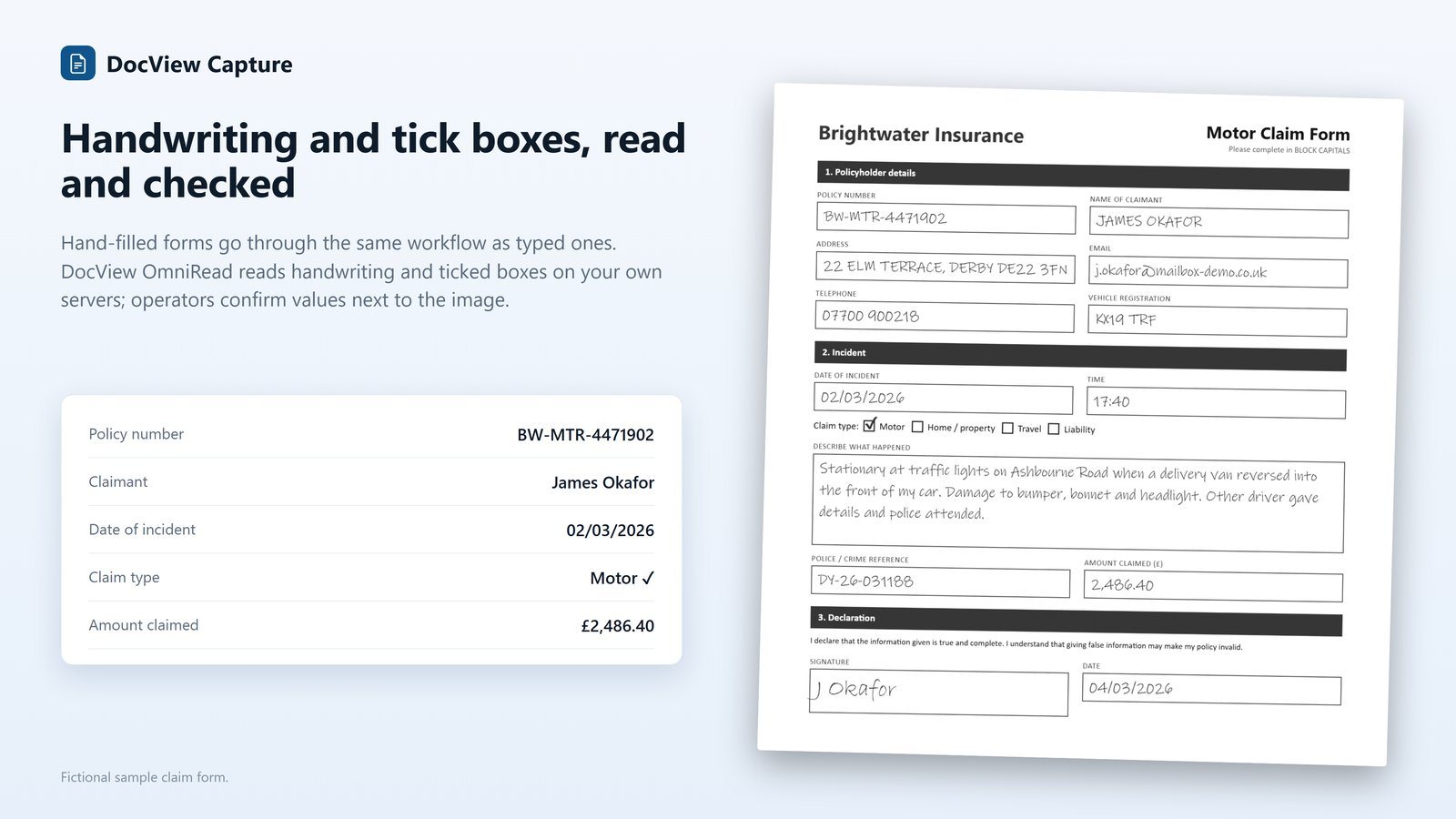
Read more about handwriting recognition and OMR, see paper form processing in the solution library, or browse all features.
OCR, ICR and OMR questions
What is the difference between OCR and ICR?
OCR reads machine-printed text. ICR reads handwriting and hand printing. ICR is harder because every writer is different, so it relies more on confidence scores, field rules and human review.
Is OMR the same as reading a tick box?
Yes. OMR decides whether a box or area has been marked, by measuring ink in a known position. Good OMR looks at a group of boxes together and flags unclear groups, such as two equal marks, for a person.
Can software read joined-up handwriting?
It can read handwriting in defined zones, especially when it knows what the field should contain. Hand printing in separate boxes reads most reliably. Long free-form notes are often indexed by a few values and kept as images.
Why add a barcode to a form?
A barcode is designed for machines to read, so it is usually more dependable than reading text. It can tell the software which form and version it is, which page it is, and which customer or case it belongs to, and it can mark where one document ends and the next begins.
See your forms read and checked
Try DocView Capture free for 14 days with sample Batch Setups. No installation, no credit card.