
Scanning bureau softwareRun the whole job, from the delivery van to the destruction certificate
Book in deliveries by scanning, time preparation per box, track custody and storage, give customers a tracking link, and report for invoicing.
- Receive
- Prepare
- Scan
- Index and verify
- Reconcile and sample
- Deliver
- Store
- Return or destroy
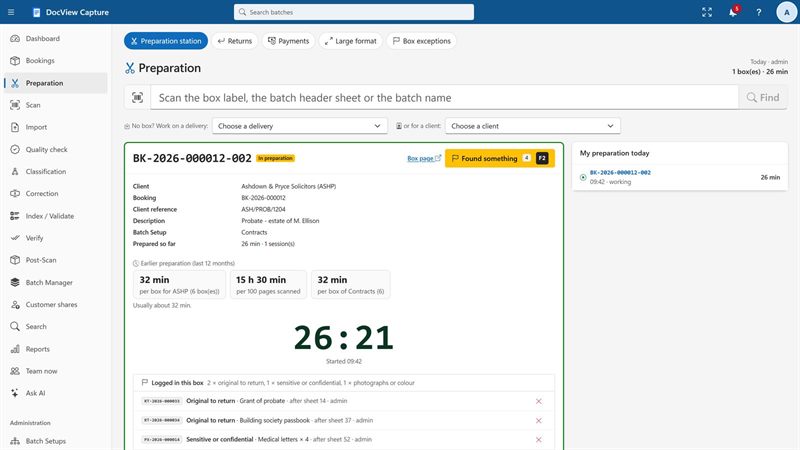
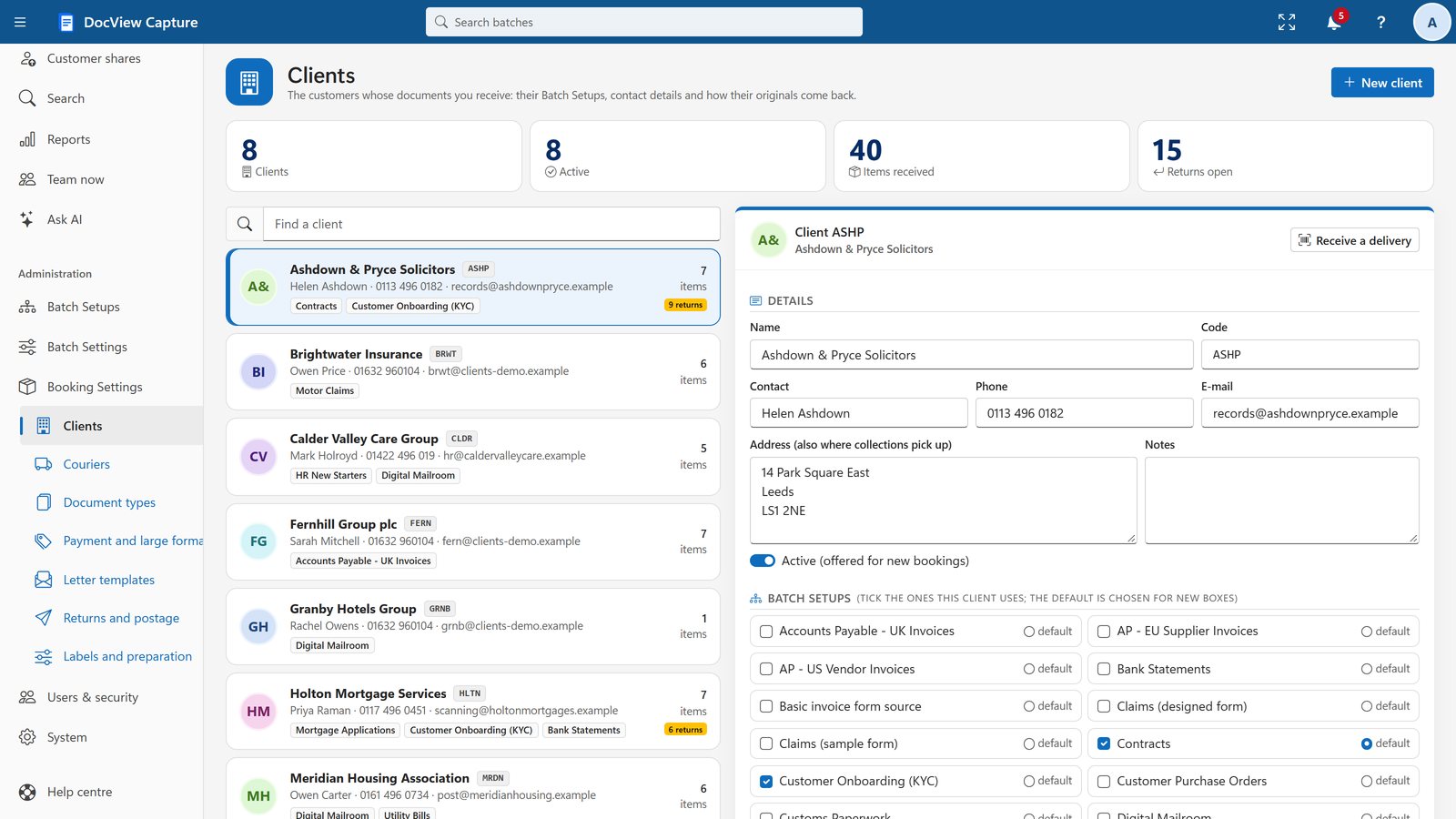
Receive a delivery by scanning
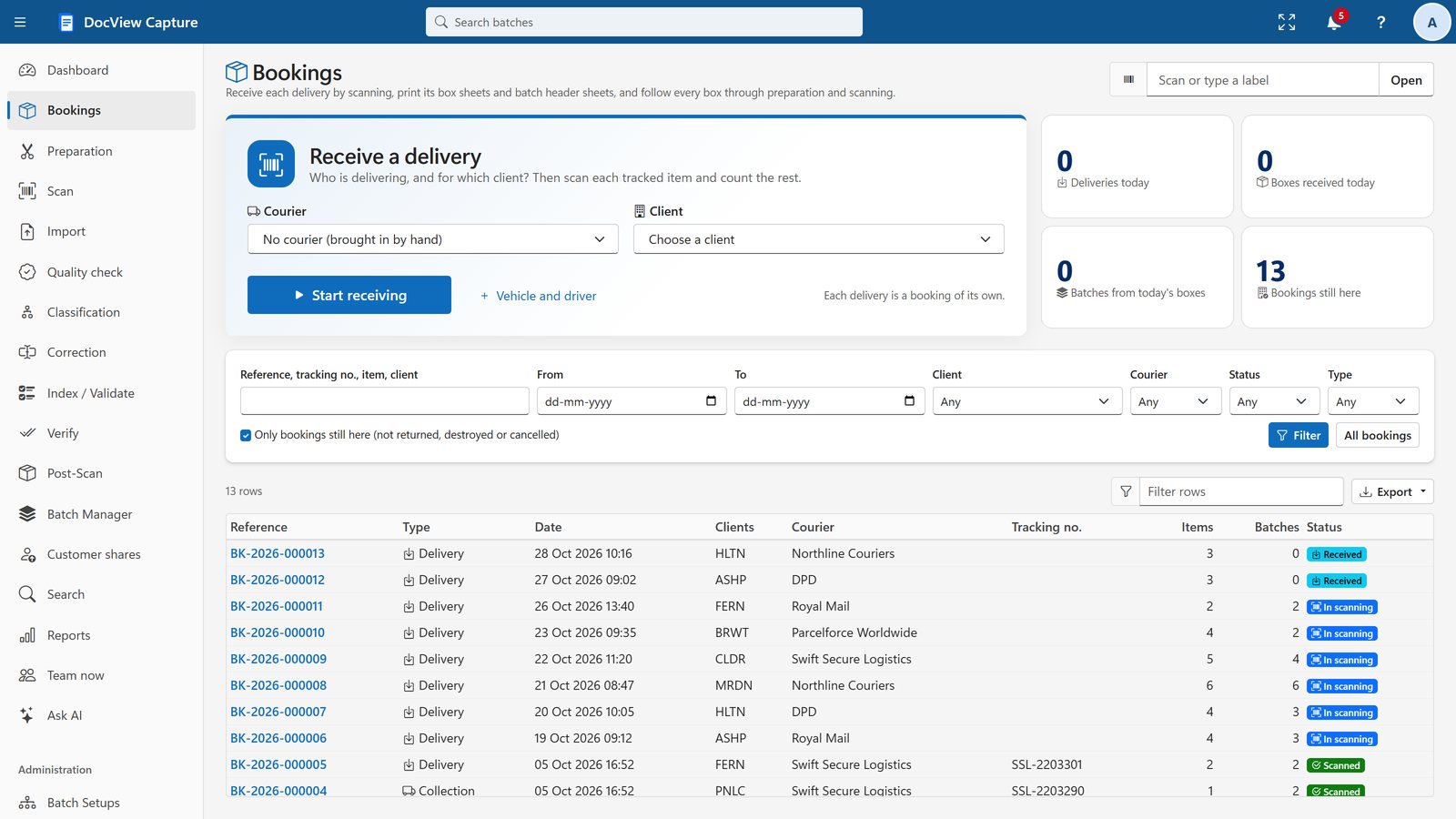
Choose the courier and client, scan each tracked item's barcode or QR code, and add untracked items by count. Totals update with every scan.
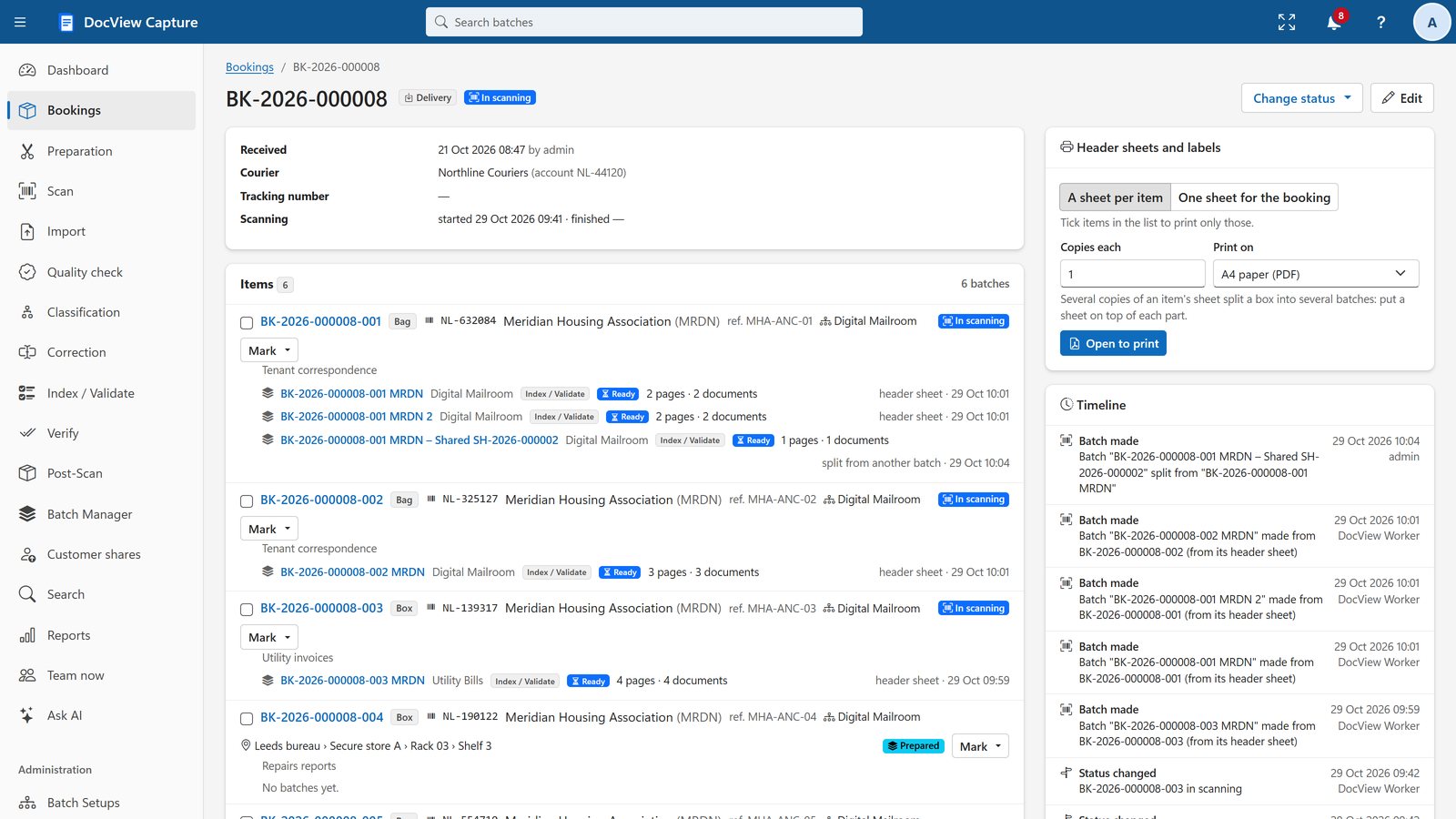
- Deliveries and collection runs: boxes, pallets, parcels, envelopes and bags
- Booking fields per client, such as purchase order or job number
- Box sheets, header sheets and labels on A4, 100 x 150 mm or Zebra-compatible printers
- A header sheet scanned first links the batch to its box, names it and is removed automatically
Log what is in the box, without losing your place
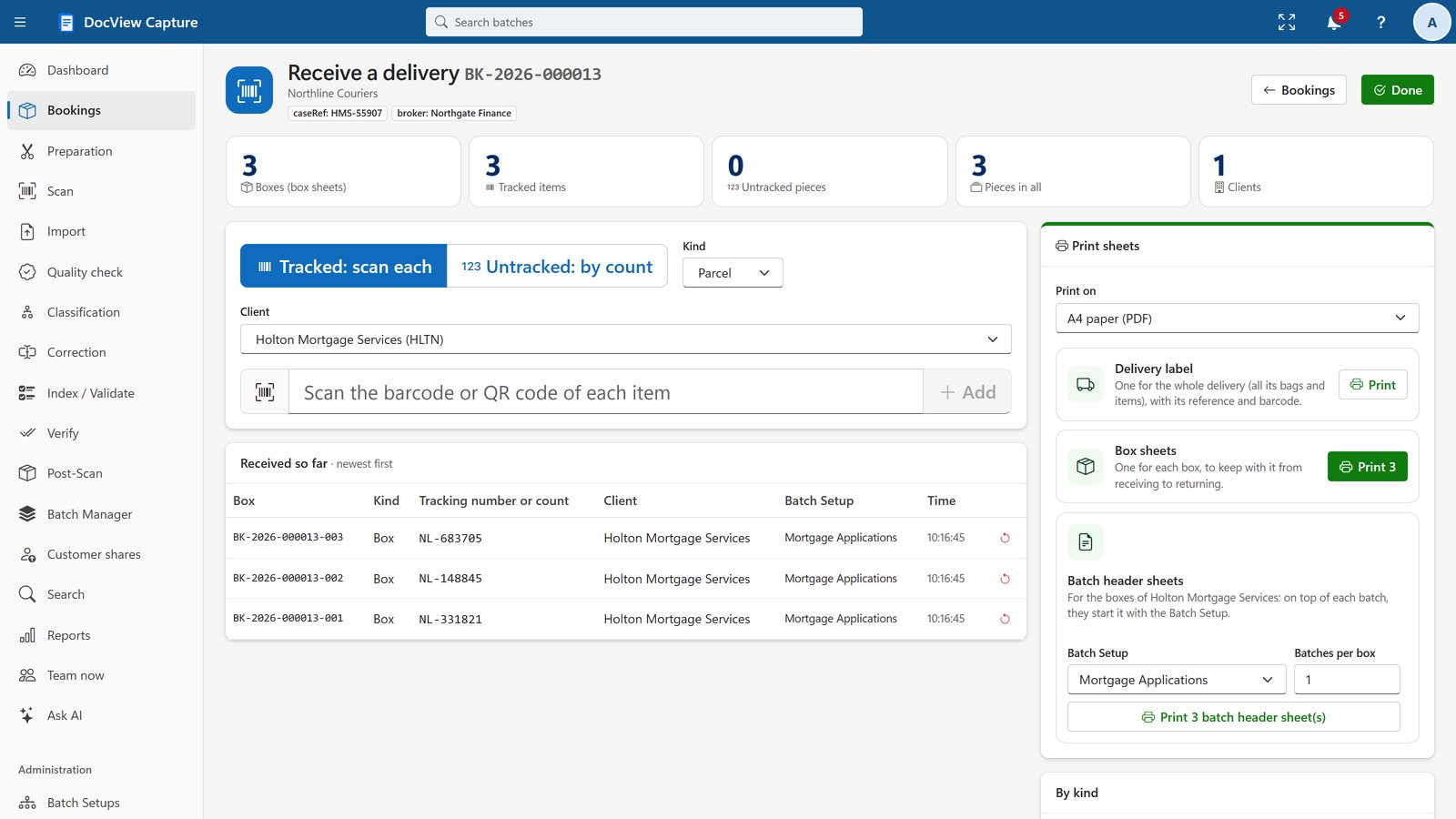
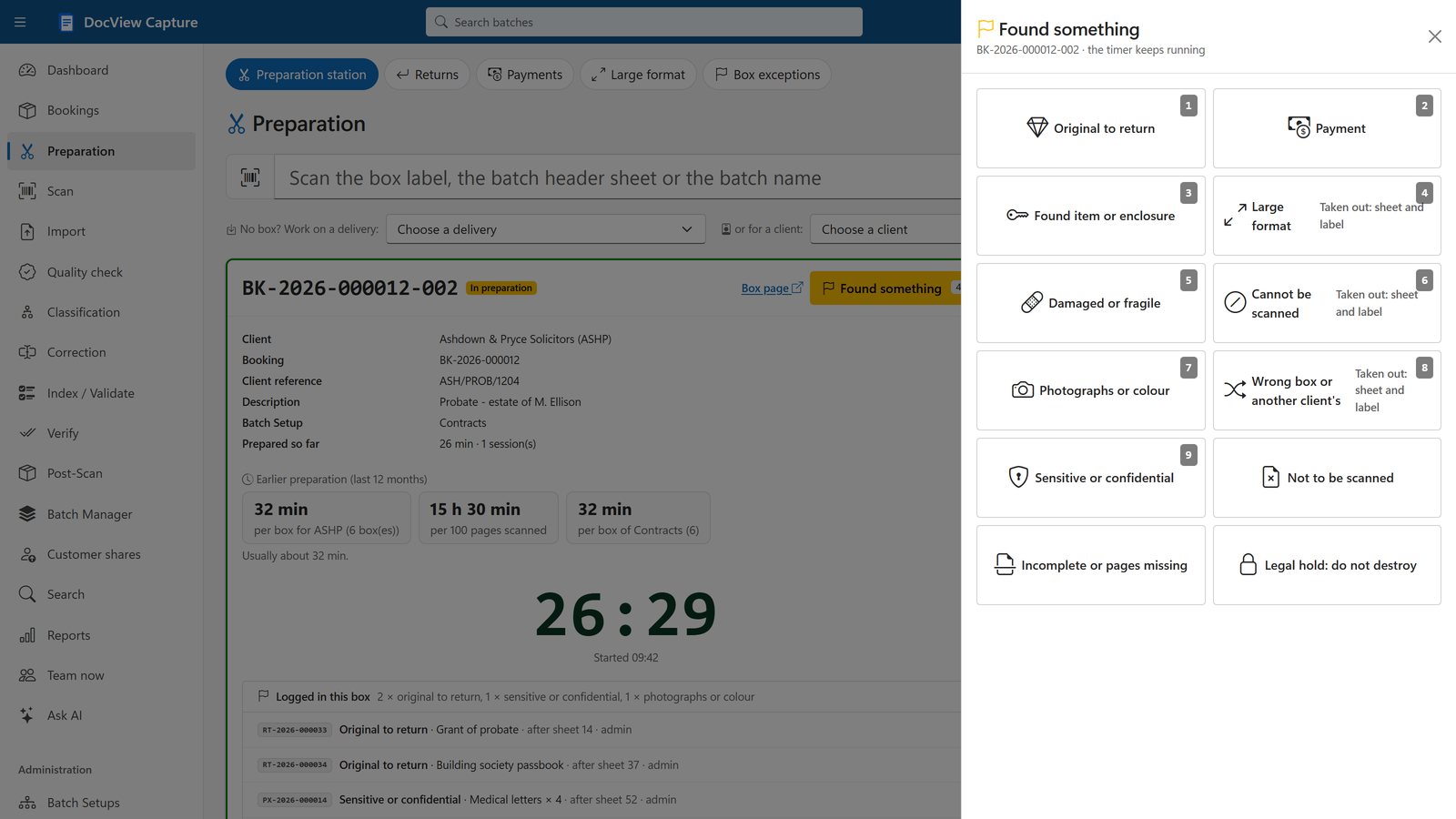
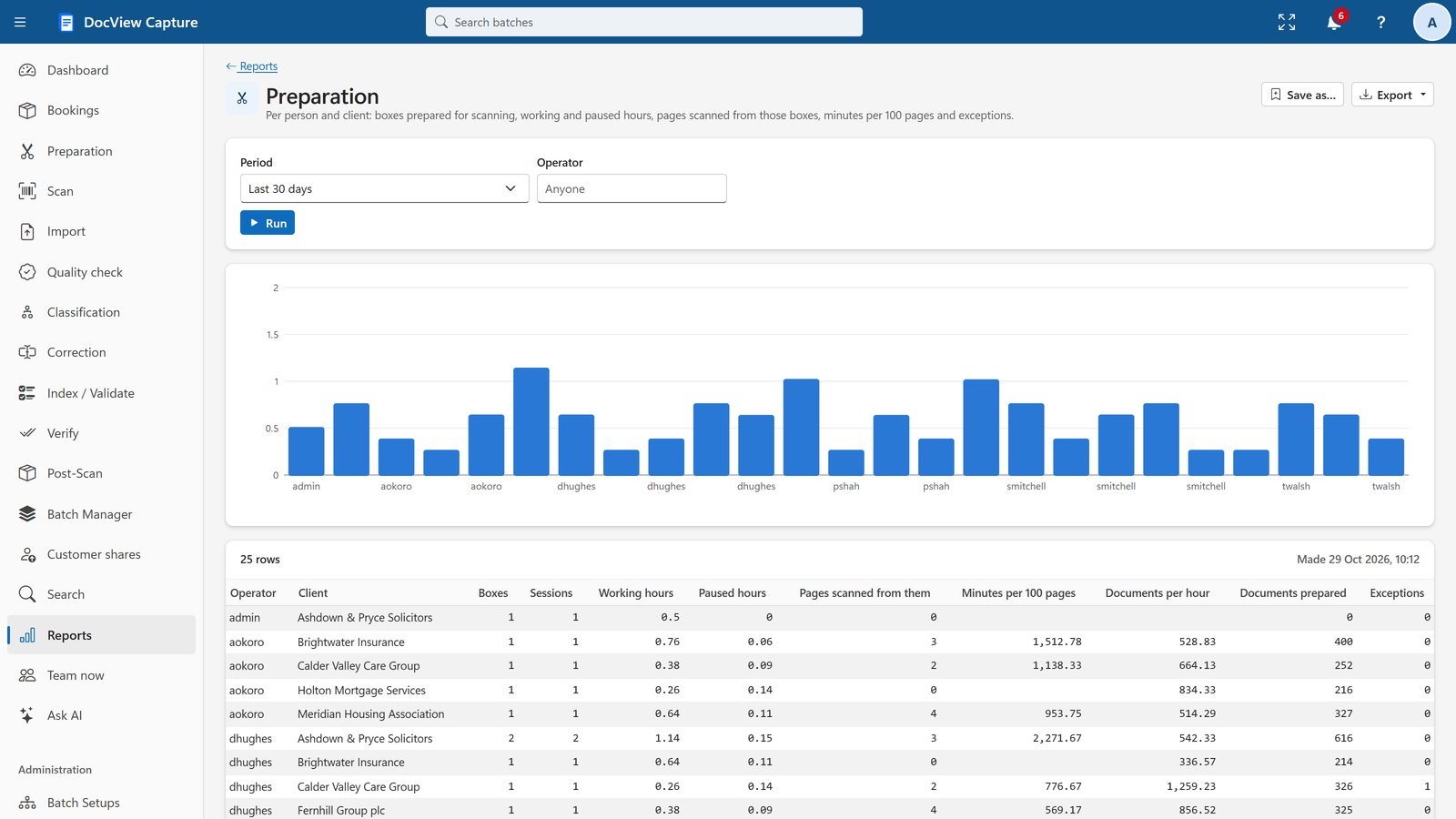
A full-screen, tablet-friendly, barcode-first station. Scan a box label and start the timer. It shows how long earlier preparation took for that client, and warns when work is taking longer than usual.
- "Found something" (F2) logs originals, payments, large documents and exceptions, and where they were
- Log at once: one tap logs an item and prints its sheet and label
- Items taken out get a replacement sheet with the same QR code and barcode
- Optional counts on finish, and several operators per box
Nothing important gets forgotten
Each preparation desk can be switched off if you do not need it, and work is shown as numbered steps.
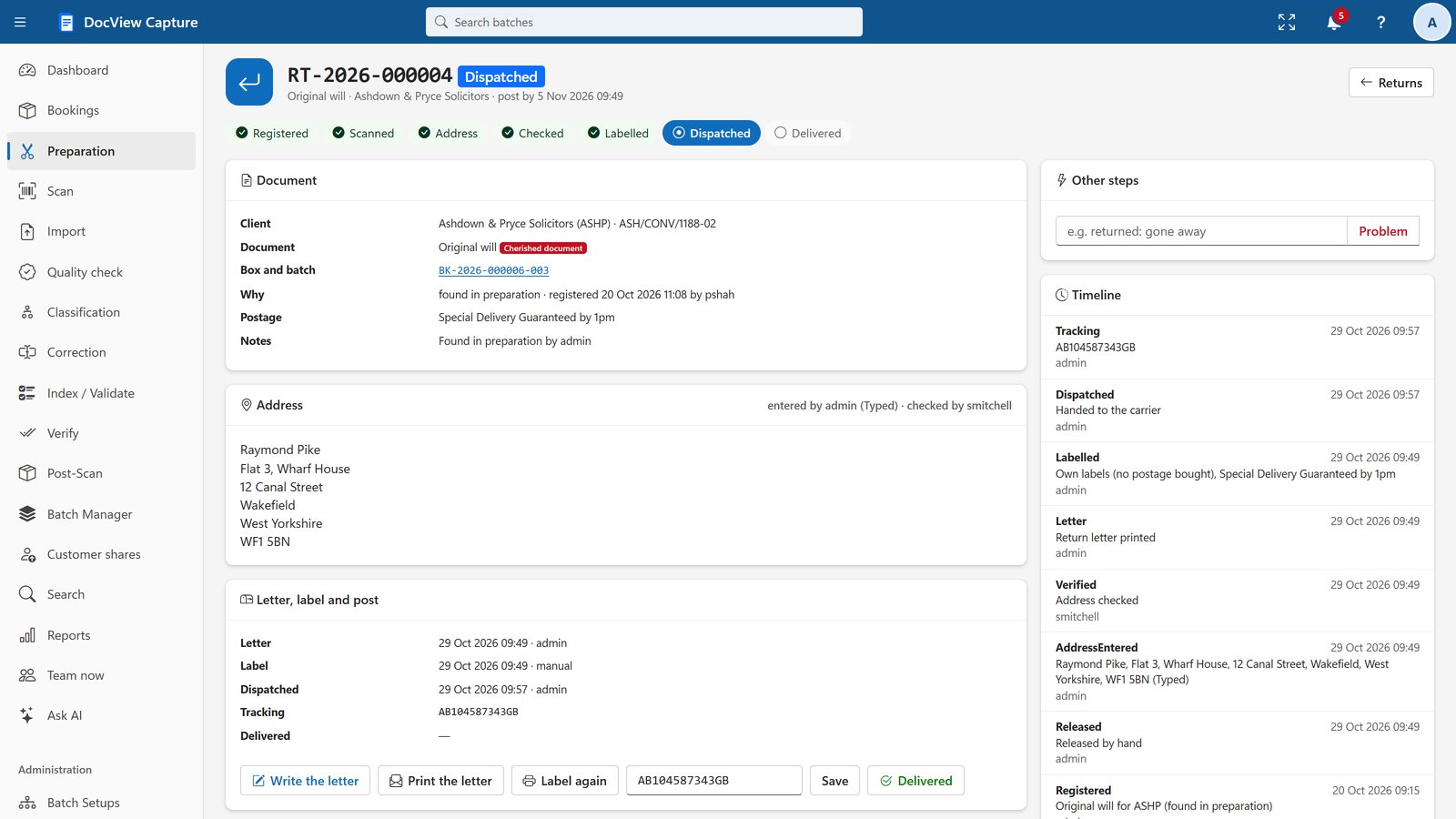
Returns of originals
Originals, cherished documents and fragile items are counted in preparation. Addresses are checked by a second person, then letters, labels, a dispatch list and tracking follow. Owners' addresses are removed a set number of days after delivery (90 by default).
Payments and items found
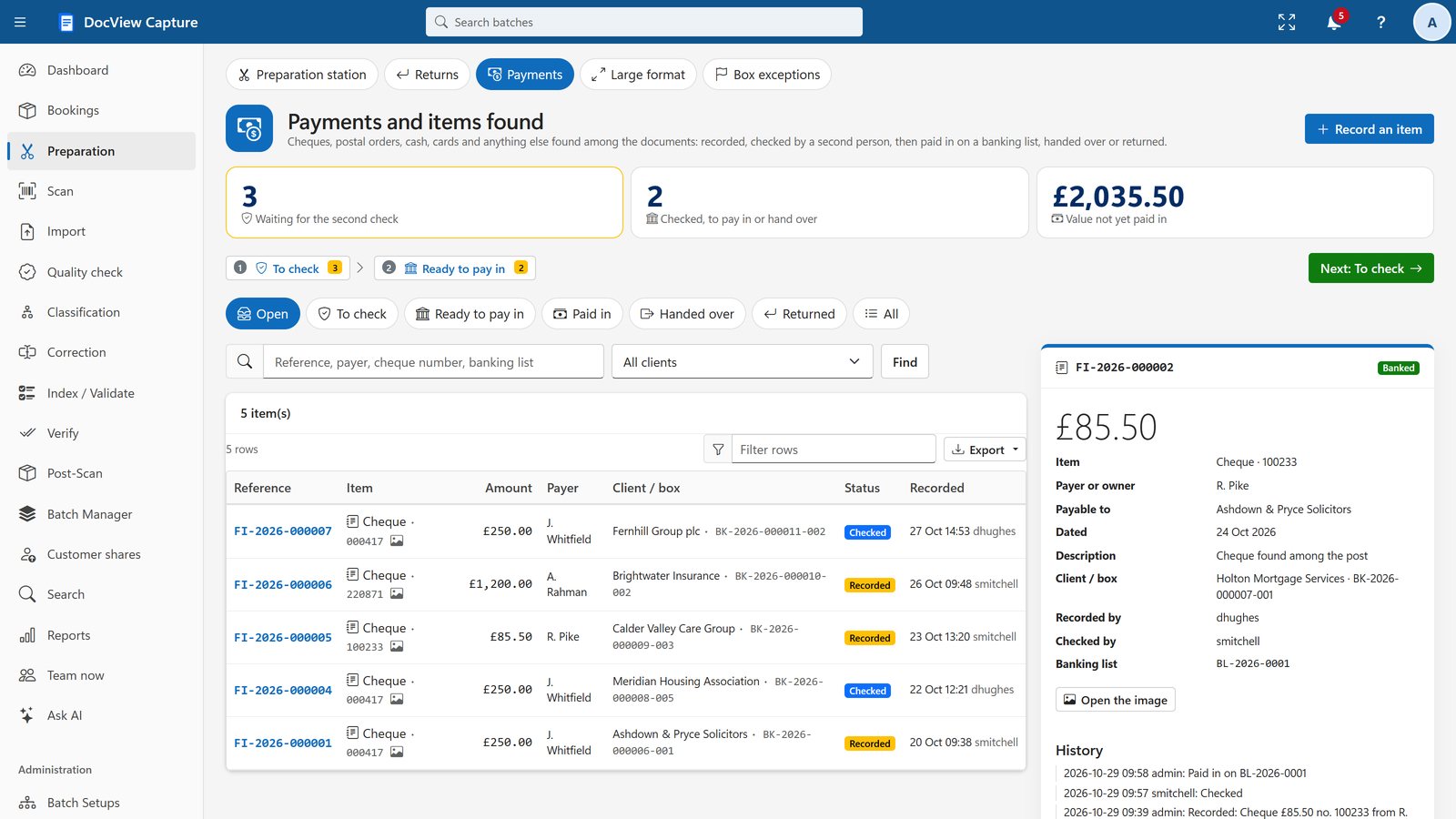
Cheques, postal orders, cash, payment cards and other items are recorded with amount, payer and image, and checked by a second person who never recorded them. They are then paid in on a numbered banking list, handed over or returned.
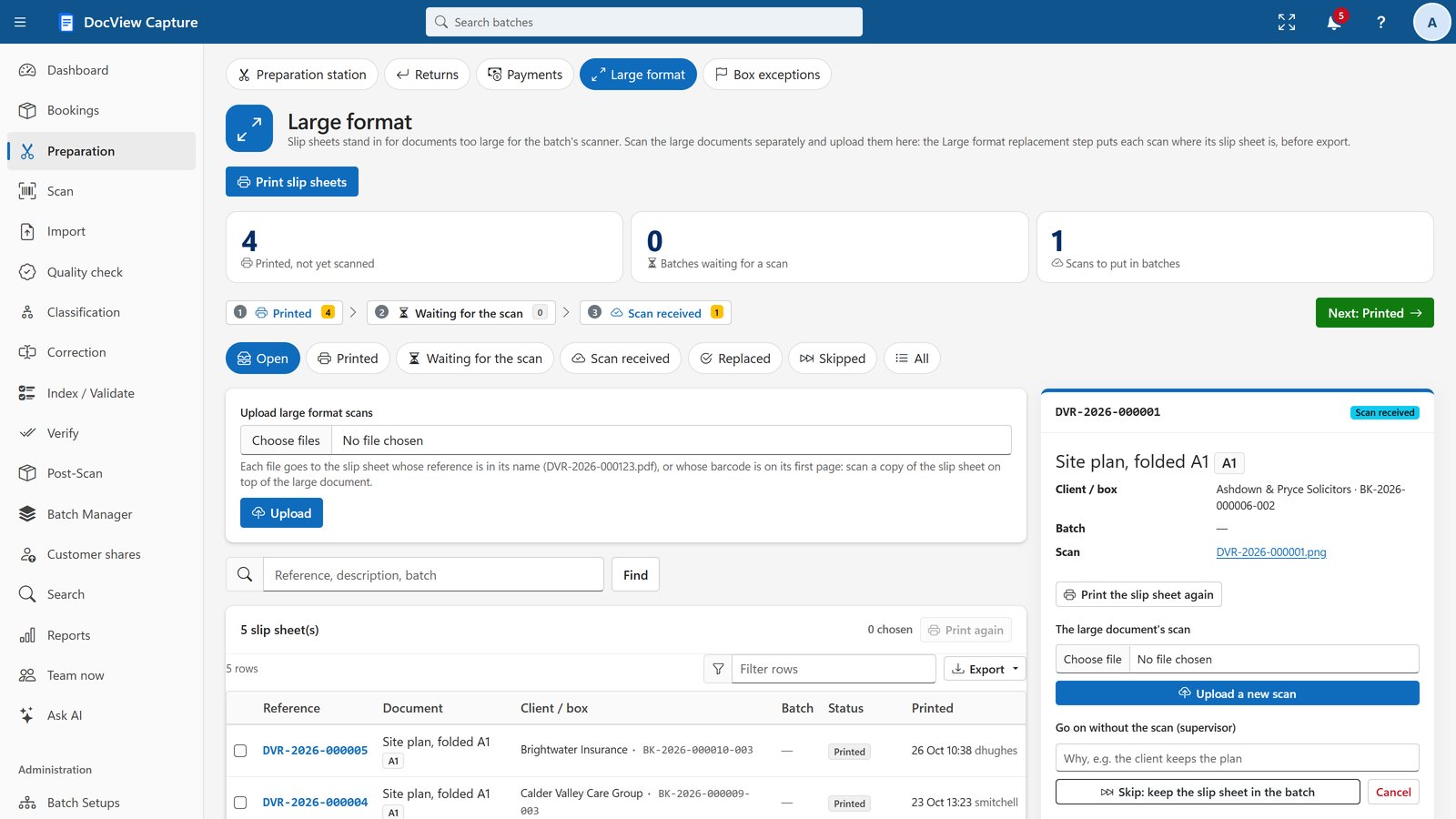
Large-format documents
Barcode slip sheets stand in for documents too large for the scanner. Their separate scans replace them automatically in the right place, and the step holds the batch until every slip sheet is replaced or skipped.
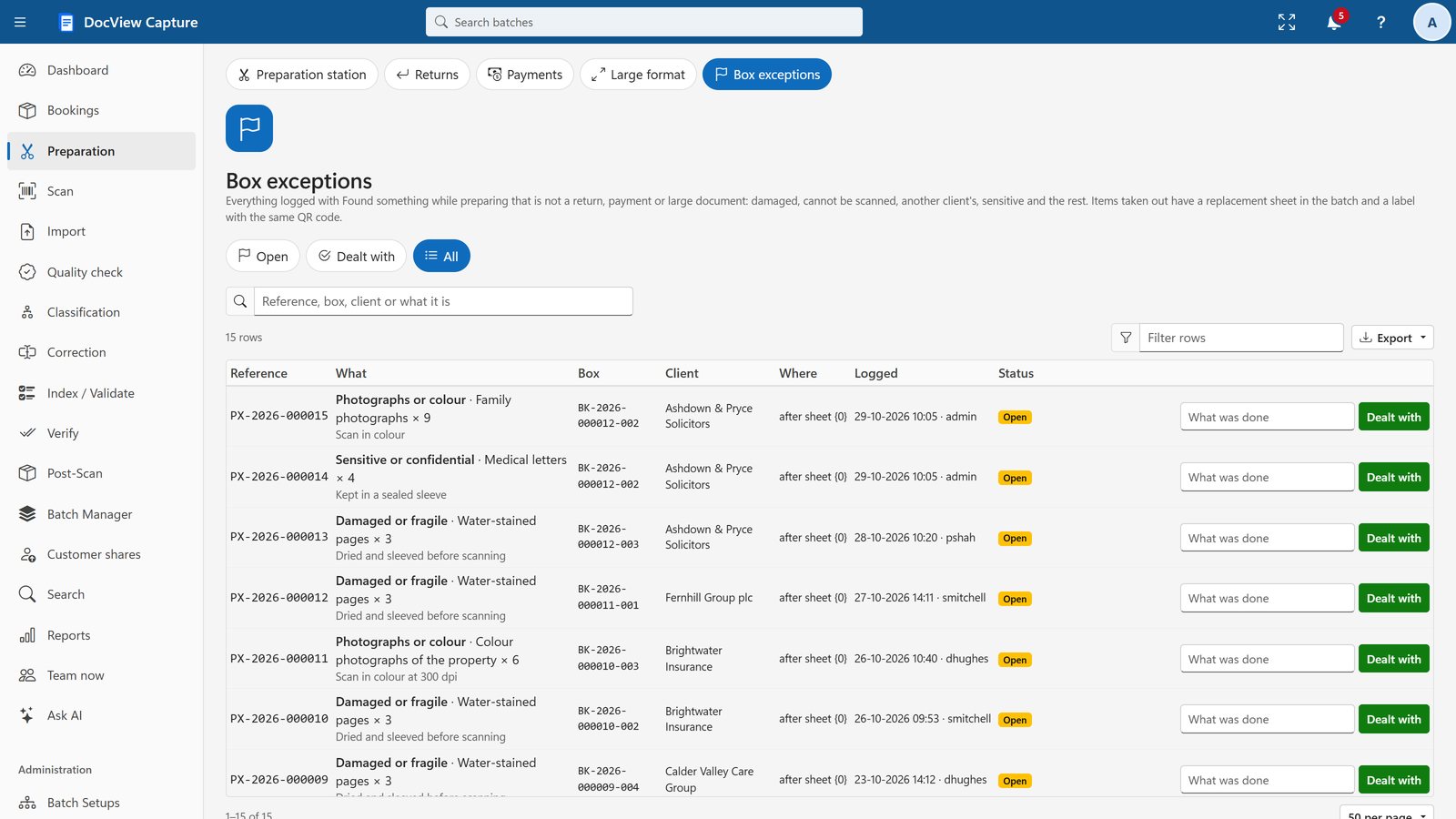
Box exceptions
Record damaged items, documents that cannot be scanned, another client's papers, sensitive material, legal holds and your own kinds of exception, with where each one was found.
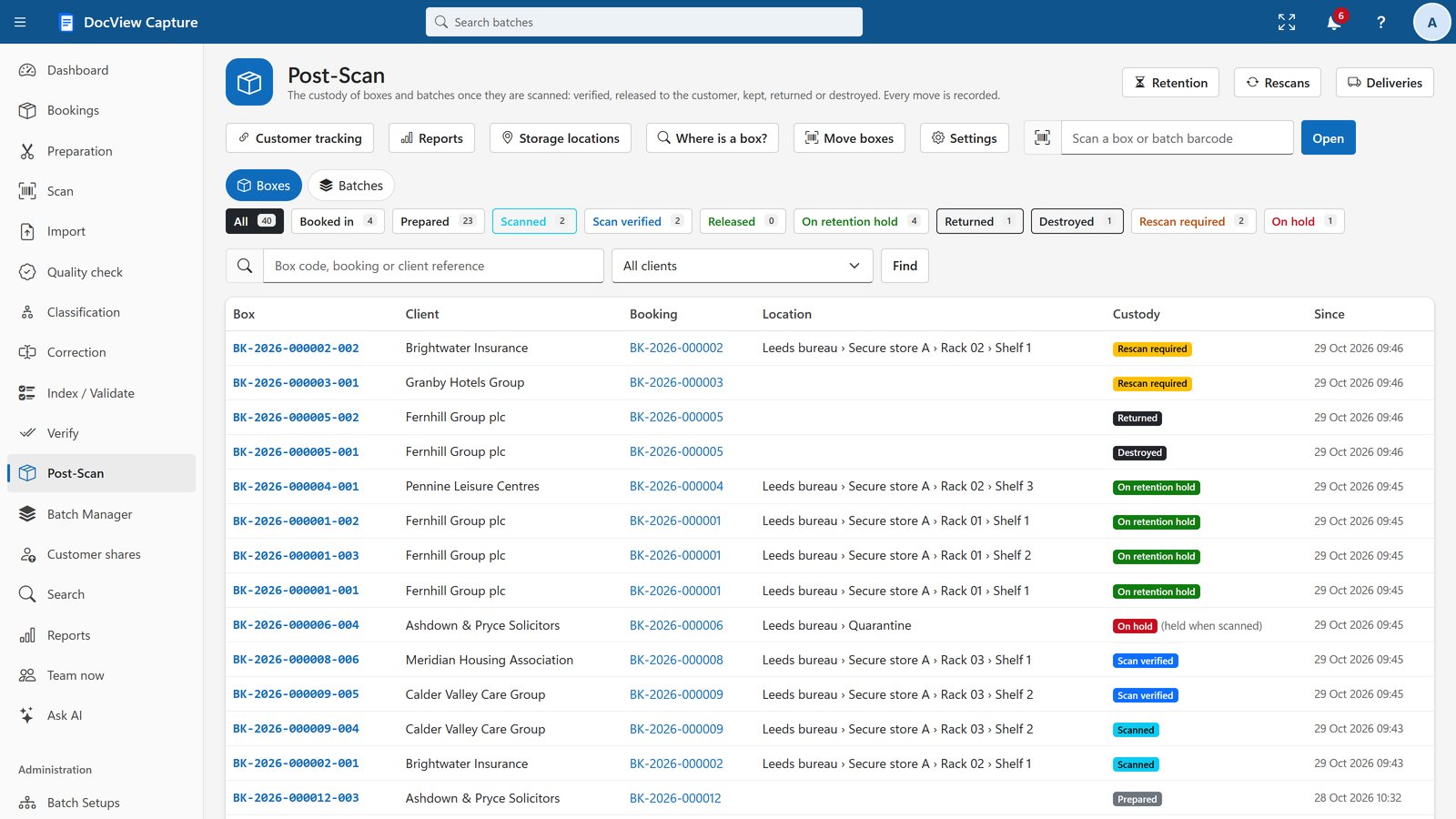
A chain of custody you can show
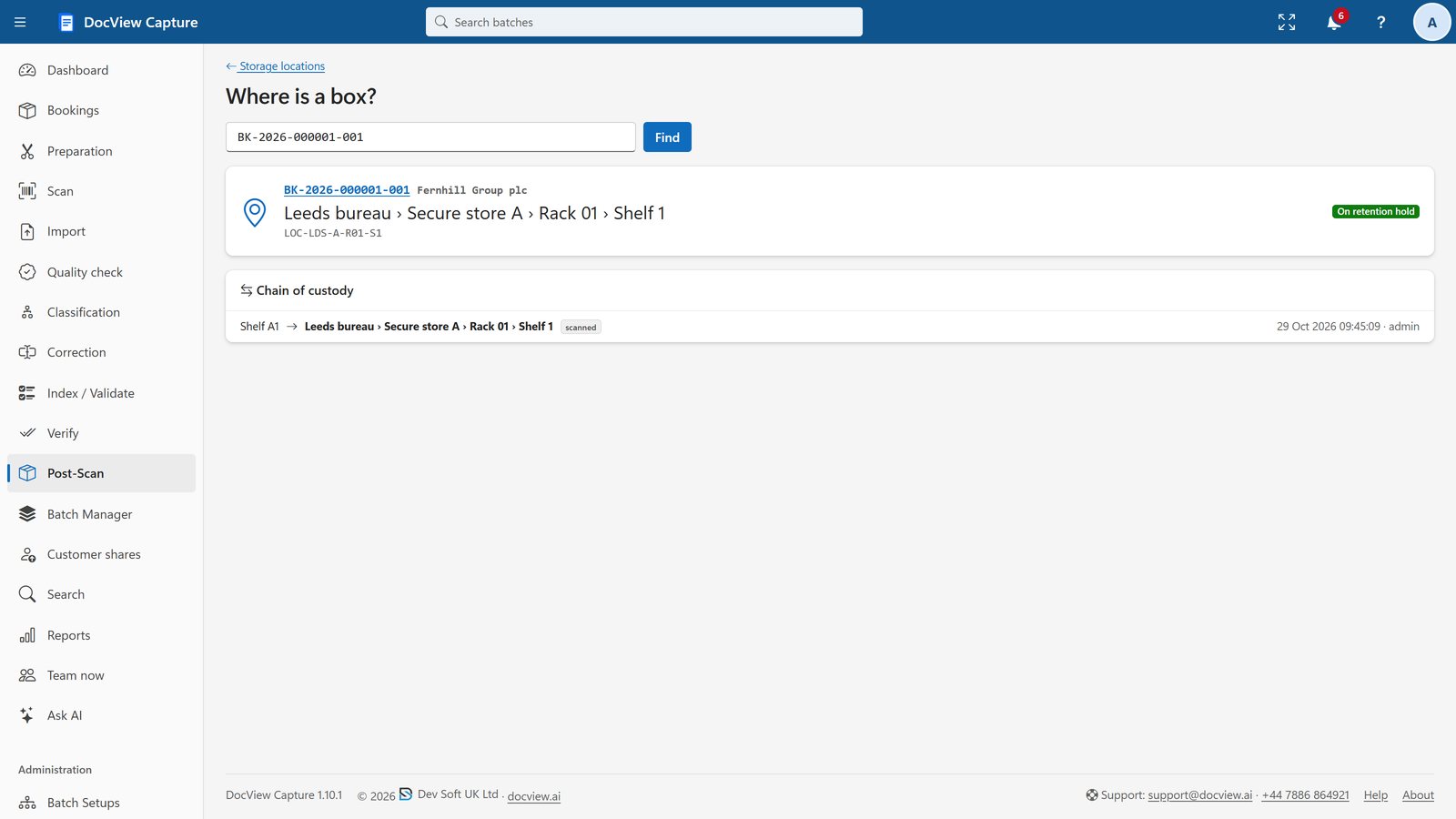
Boxes and batches move from booked in to prepared, scanned, scan verified, released, on retention hold, then returned or destroyed. Only valid moves are allowed, reasons are required, and the history is append-only.
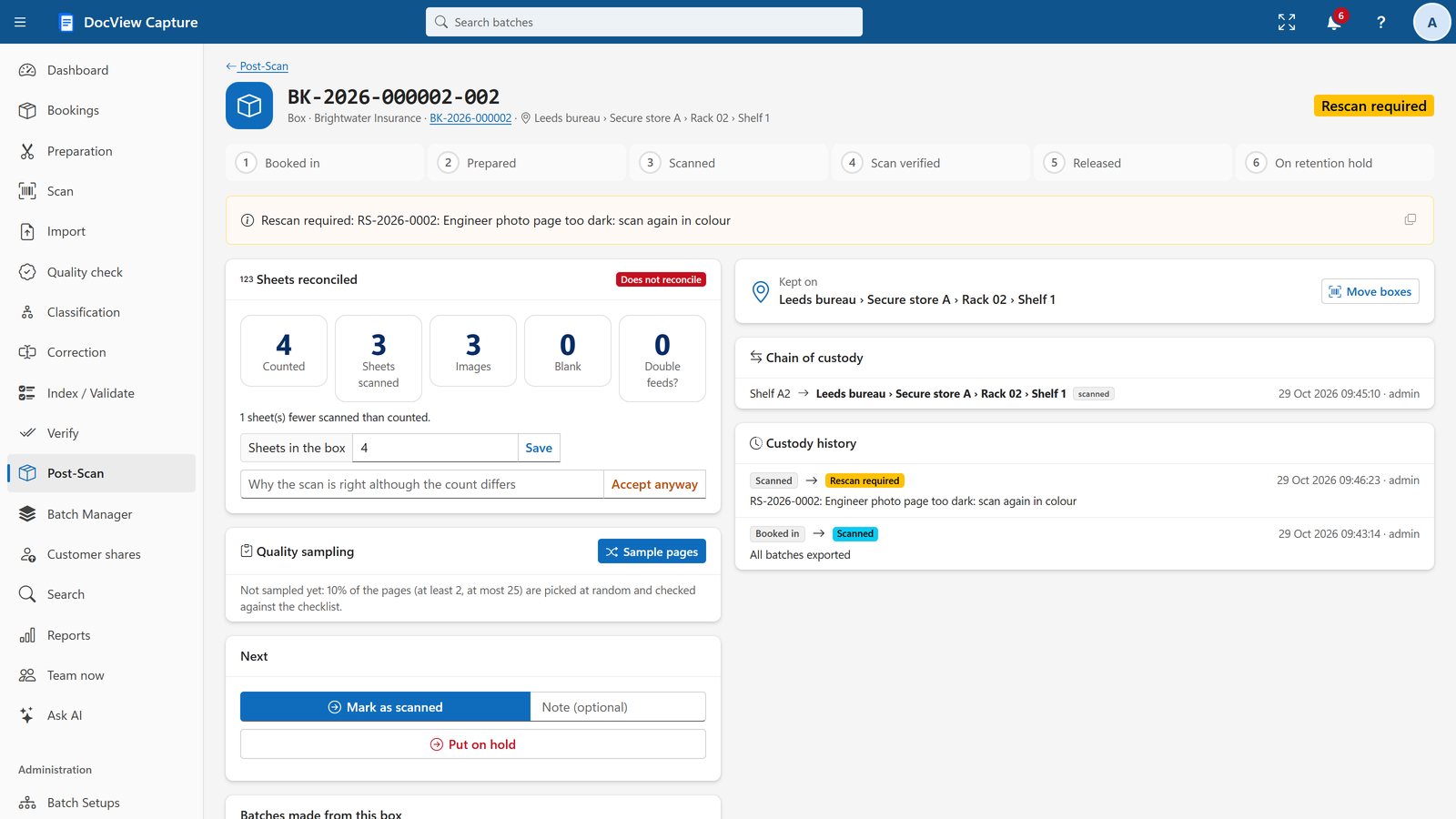
- Reconcile expected sheets against scanned images, blanks and possible double feeds
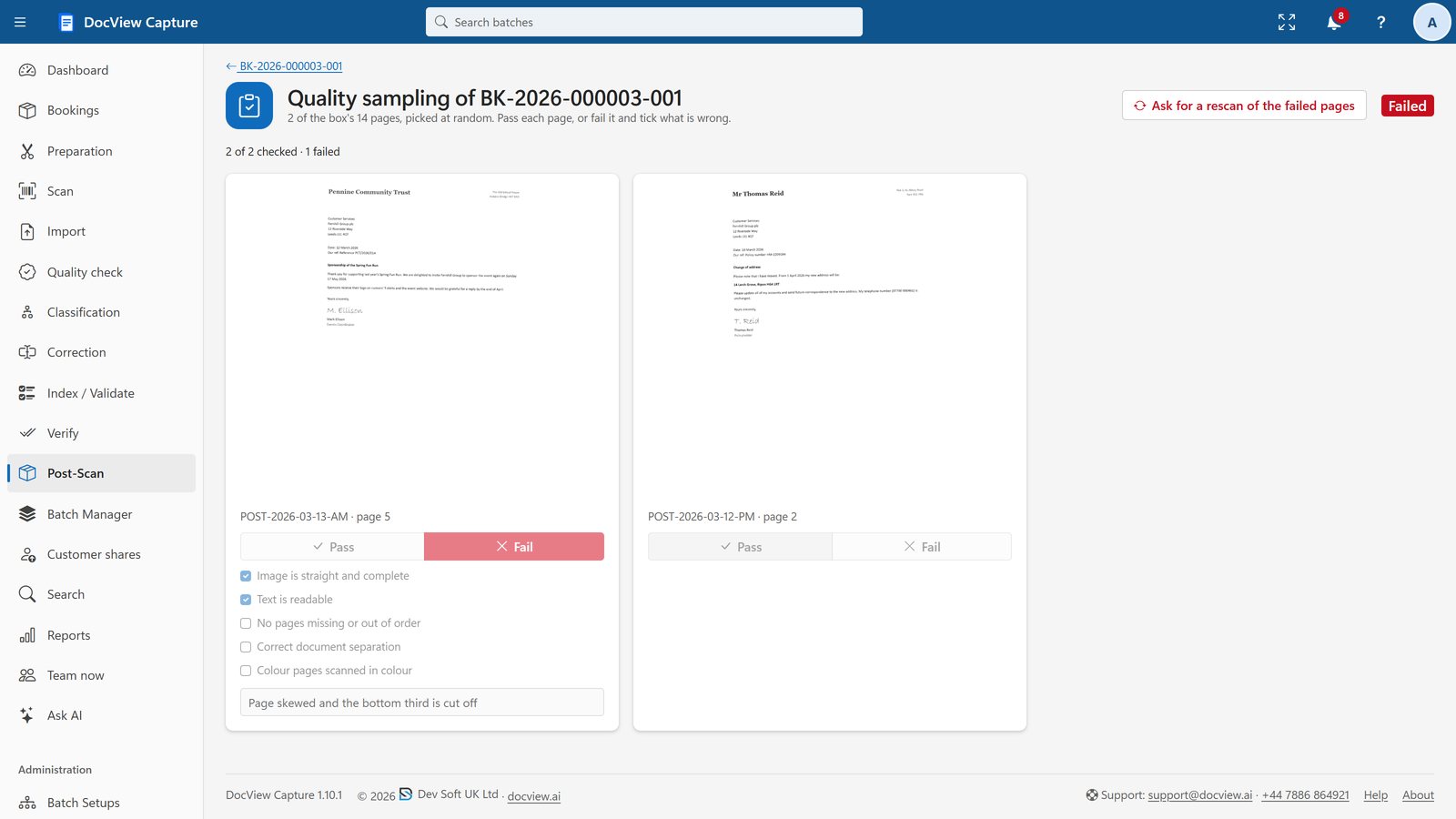
- Random quality sampling with a checklist
- "Scan verified" only when counts reconcile and sampling passes
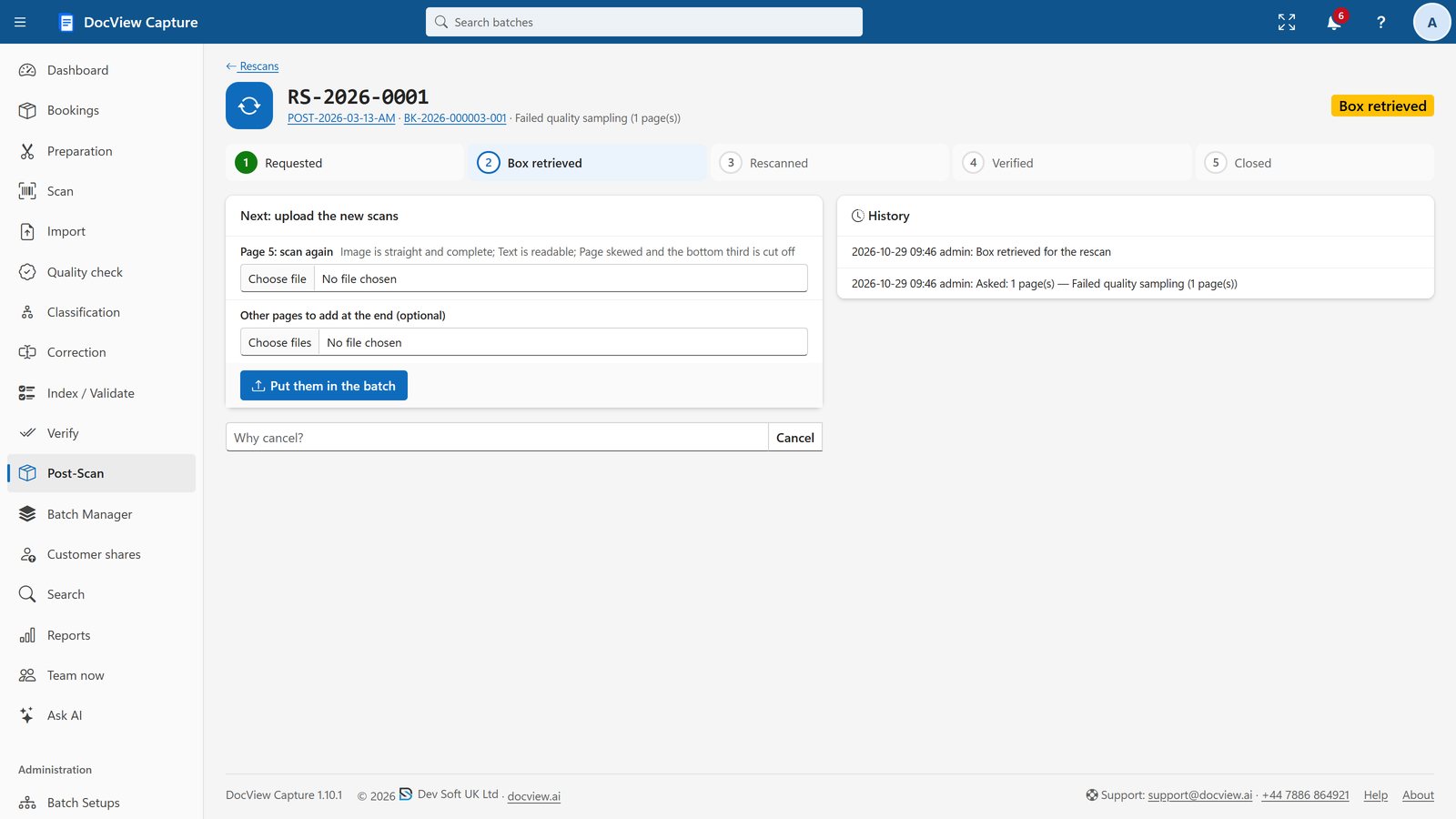
- Rescan requests, with pages replaced in place
Know where every box is, and when it is due
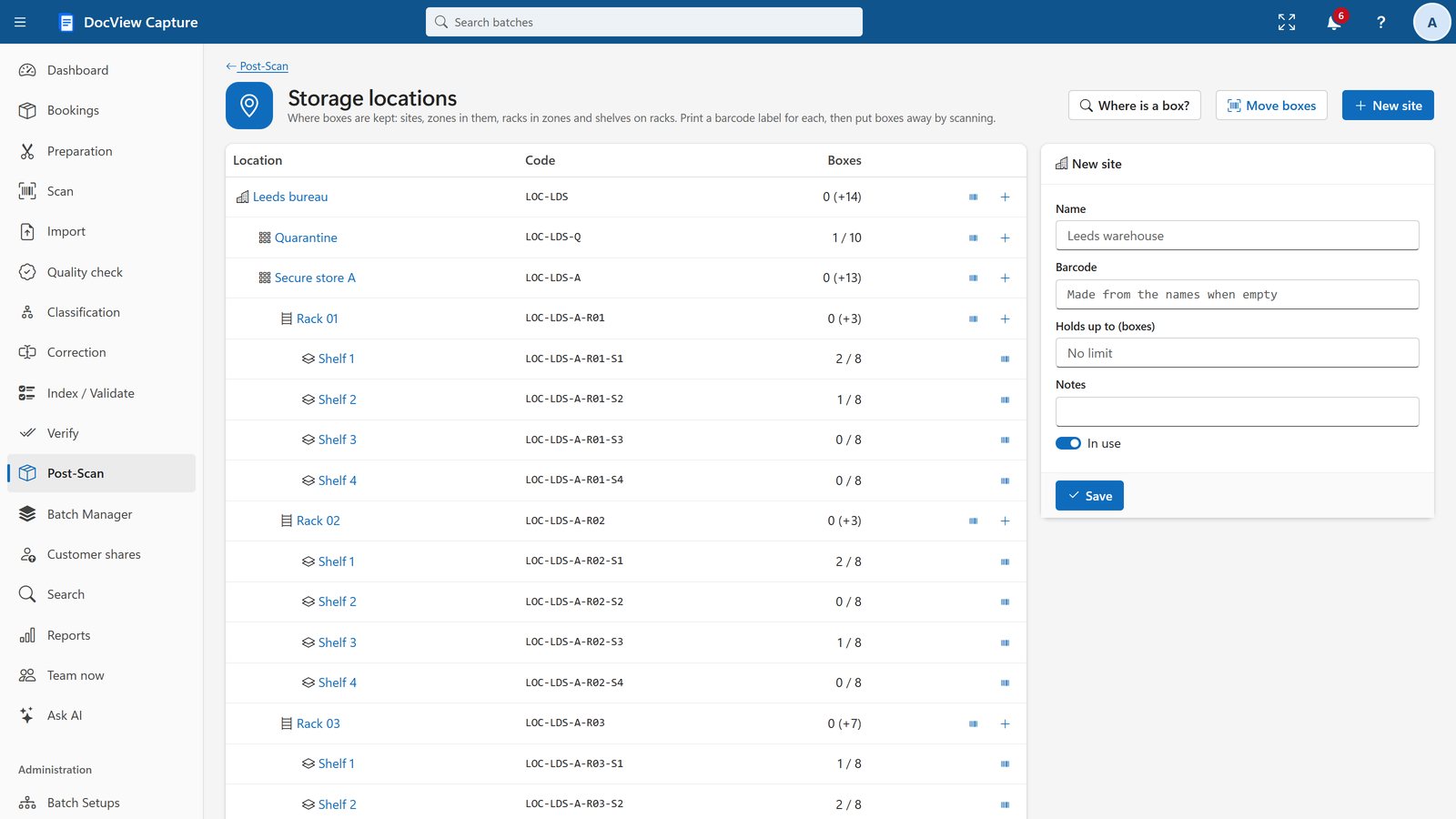
Barcode your storage locations by site, zone, rack and shelf, move boxes by scanning, and look up where any box is.
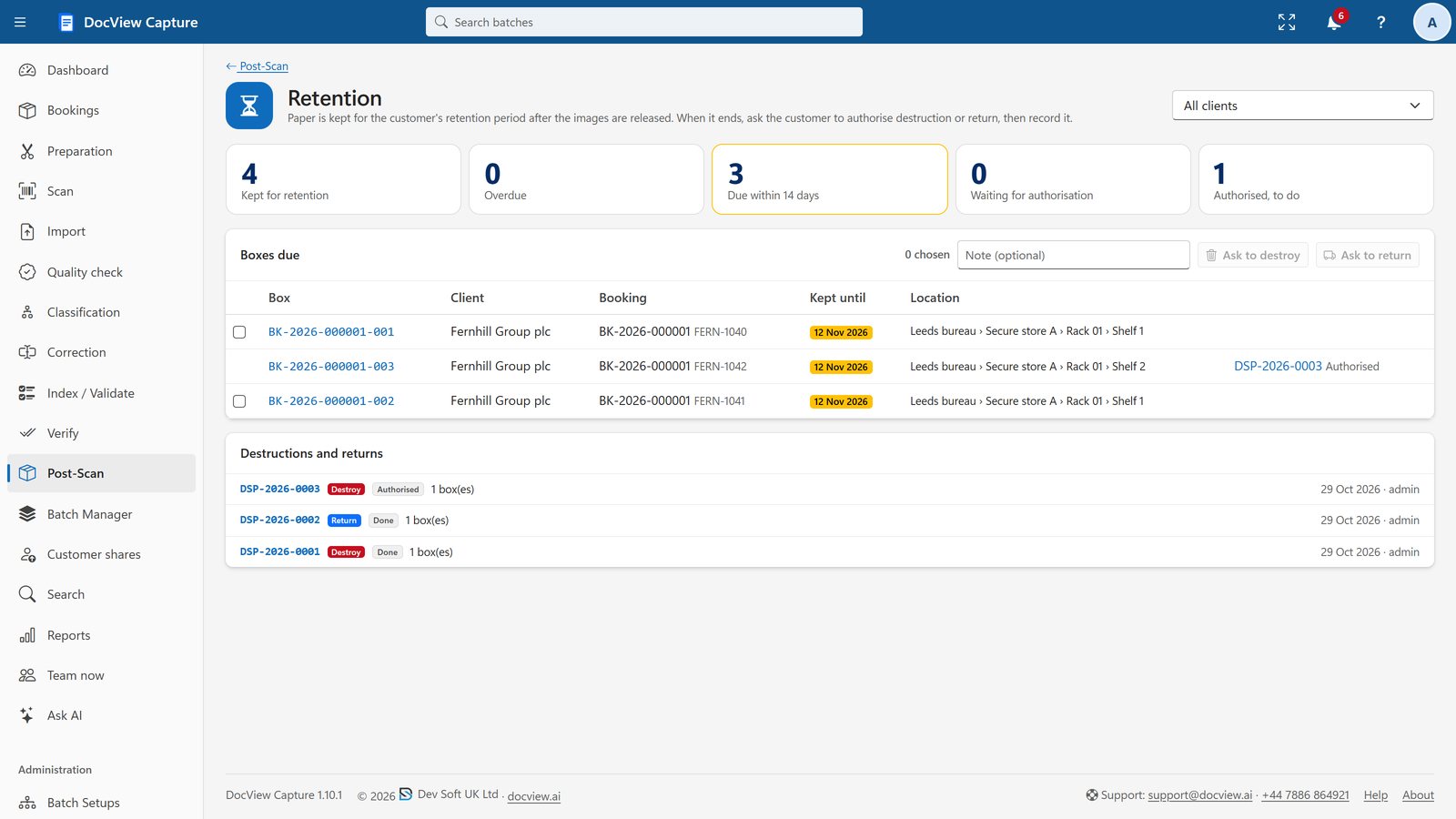
- Retention days per client, with a due-date view and daily alerts
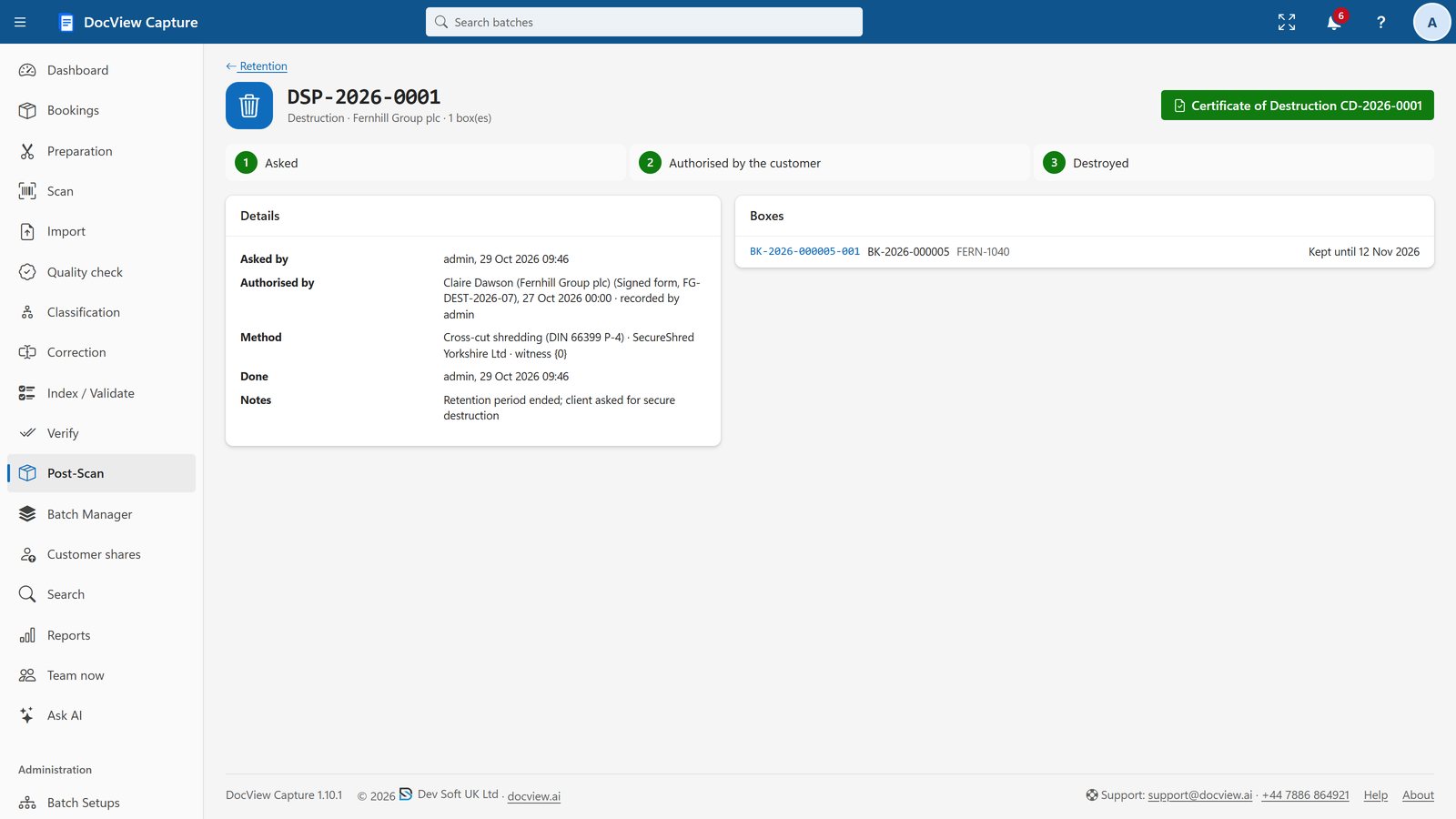
- Customer authorisation before destruction
- Method, contractor and witness recorded, with a numbered Certificate of Destruction (PDF)
- Or return by courier
Give customers a tracking link
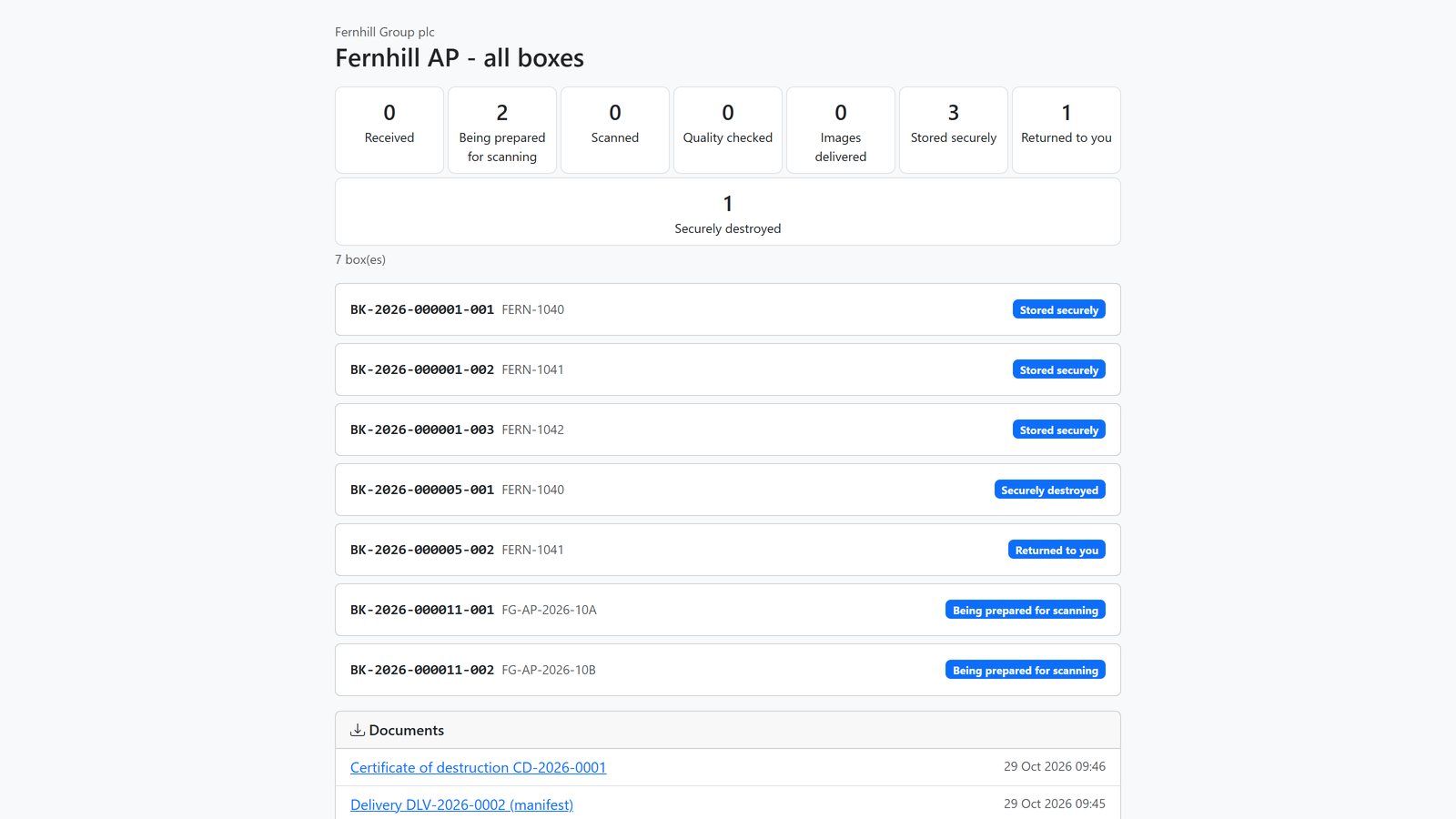
Customers follow their boxes in their own words, with no account. Links can have an expiry and a PIN, and can carry a QR code.
- Customer-friendly status words you choose
- Optional downloads of manifests and certificates (off by default)
- Requests to approve destruction, send back or rescan, confirmed by your staff
- An access log for every link
Report what you did, and bill for it
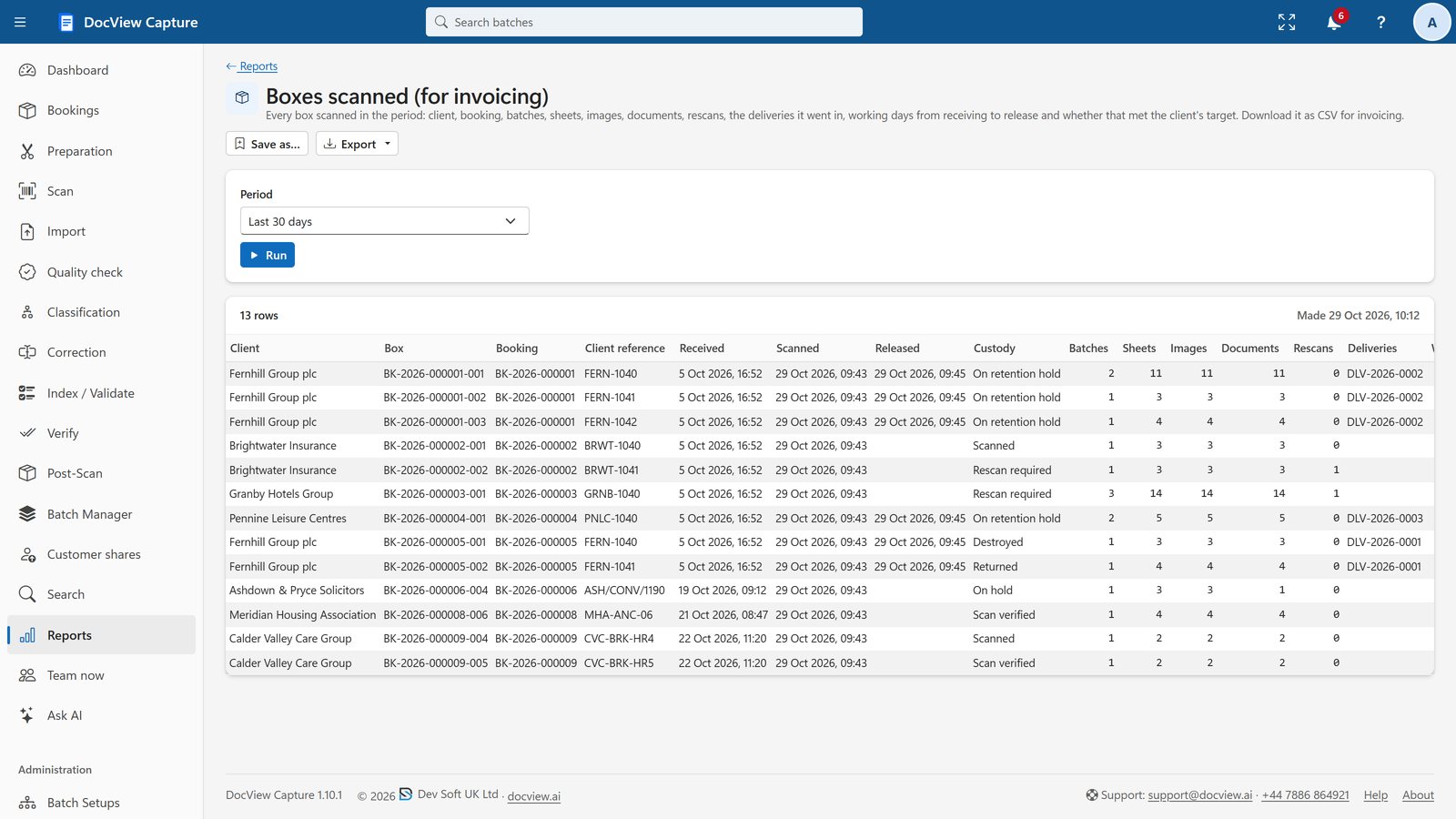
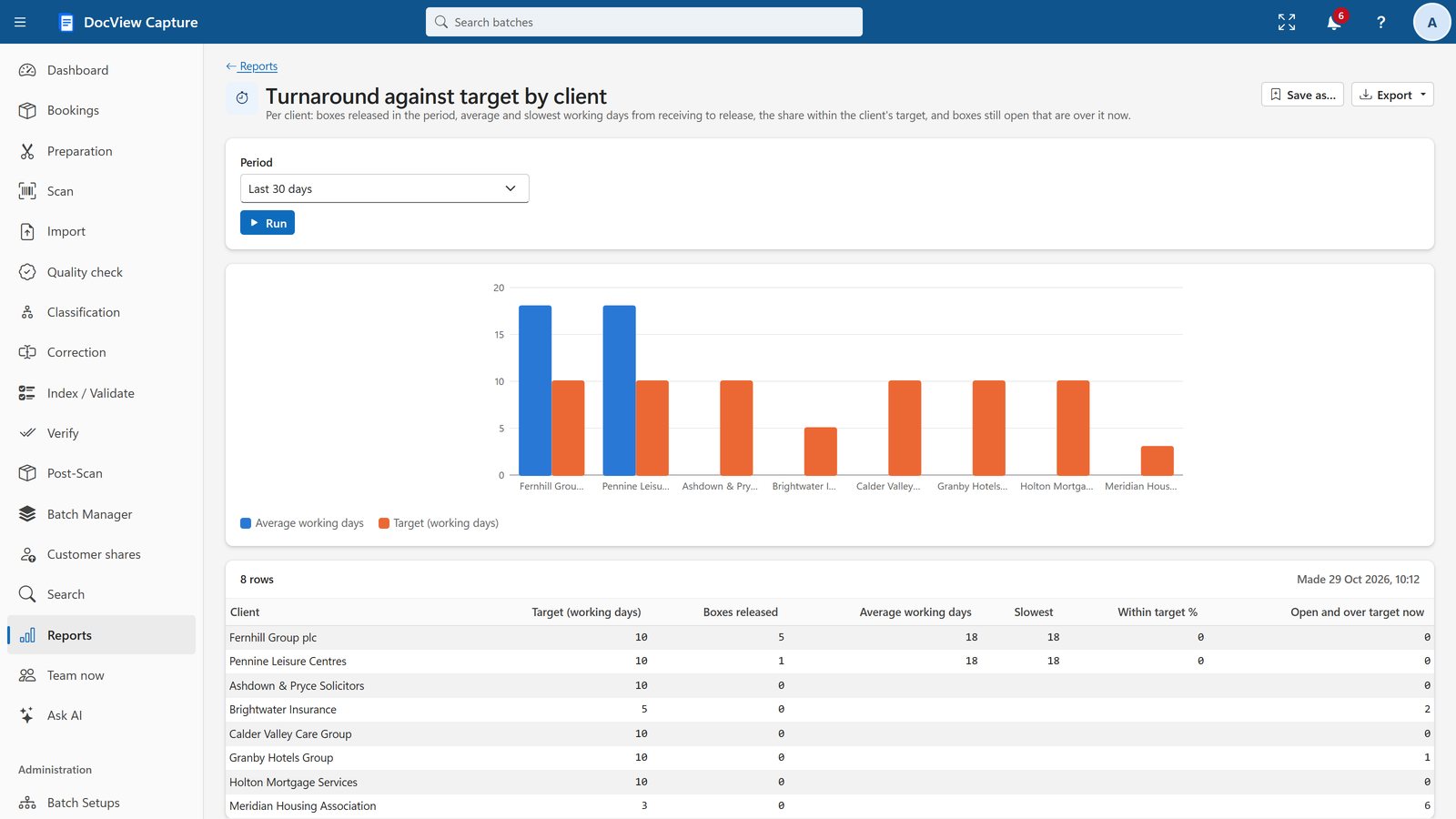
Post-Scan reports cover boxes, sheets, images, documents, rescans and deliveries, with turnaround against target by client.
Questions from bureaus
Does DocView support scanning bureaus?
Yes: bookings and goods-in, box and header sheets, a preparation station with timing, returns of originals, payments found, large-format documents, chain of custody, storage, retention with destruction certificates, customer tracking links and reports for invoicing.
Can one installation serve several customers?
Yes. Organisations and departments each have their own users, setups, batches and data, kept apart. Clients within an organisation have their own Batch Setups, booking fields and retention days.
Can my customers answer questions about their documents?
Yes. Share chosen documents with a secure link and a PIN. The customer answers, fills in fields, approves or uploads pages with no account needed, and the work comes back to the same step.
Which label printers can I use?
Sheets and labels print on A4, on 100 x 150 mm labels, or on Zebra-compatible label printers using ZPL, which can also be sent directly to a network printer.
Talk to us about your bureau
Tell us how your work flows today, or try the workflow yourself in a 14-day demo.